MNE Inspect

MNE Inspect is a 3D brain visualization and source analysis application. It provides an interactive viewer for FreeSurfer-reconstructed cortical surfaces, BEM models, source estimates, sensor layouts, functional connectivity networks, and evoked sensor-field maps — all within a single, integrated GUI.
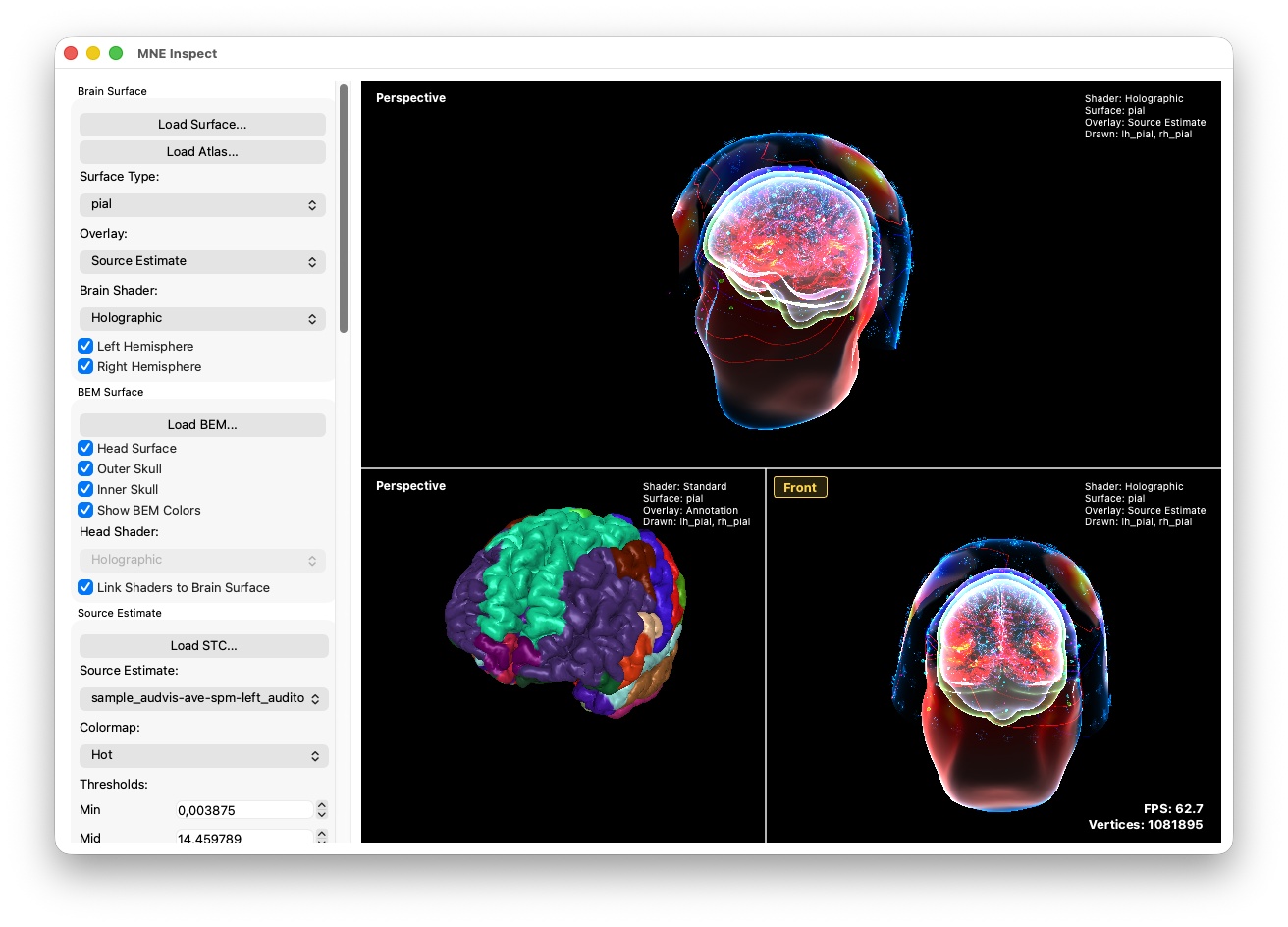
Getting Started
Launch MNE Inspect from the command line:
mne_inspect [options]
The application opens with the default MNE sample dataset. You can specify your own data via command-line options (see below) or load files interactively through the GUI controls.
Command-Line Options
| Option | Description | Default |
|---|---|---|
--subjectPath <path> | Path to the FreeSurfer subjects directory | <app>/resources/data/MNE-sample-data/subjects |
--subject <name> | Subject name | sample |
--bem <path> | BEM surface file (FIFF) | — |
--trans <path> | Head-to-MRI transformation file (FIFF) | — |
--stc <path> | Source estimate file (can be repeated for multiple STCs) | — |
--digitizer <path> | Digitizer / sensor layout file (FIFF) | — |
--srcSpace <path> | Source space or forward solution file (FIFF) | — |
--atlas <path> | Atlas annotation file (lh or rh; the sibling hemisphere is auto-detected) | — |
--evoked <path> | Evoked / average data file (FIFF) | — |
Example
mne_inspect \
  --subjectPath /data/subjects \
  --subject sample \
  --stc /data/sample-stc-lh.stc \
  --bem /data/subjects/sample/bem/sample-5120-bem.fif \
  --trans /data/sample-trans.fif \
  --atlas /data/subjects/sample/label/lh.aparc.annot
Features
Cortical Surface Visualization
- Load and display FreeSurfer-reconstructed surfaces (inflated, pial, white, sphere, etc.)
- Switch between surfaces at runtime via the Surface combo box
- Apply different shader modes for surface rendering
- Toggle left and right hemisphere visibility independently
Atlas Overlays
- Load FreeSurfer atlas annotations (e.g.,
aparc,aparc.a2009s) - Overlay parcellation regions on the cortical surface with color coding
- Both hemispheres are loaded automatically when one is specified
BEM Models
- Load and display the three BEM layers: inner skull, outer skull, and head surface
- Toggle individual layers on or off
- Separate shader control for BEM surfaces
- Optional fixed-color mode for BEM rendering
Source Estimates (STC)
- Load and visualize MNE/dSPM/sLORETA source estimate time courses
- Animated playback with adjustable speed (0.25x – 4x)
- Real-time accurate playback mode with fractional sample stepping
- Configurable colormap (Hot, Hot Negative, Jet, Bone, Red-Blue, Cool-Warm)
- Adjustable threshold controls (min, mid, max) for activation display
- Timeline scrubbing via slider
- Support for loading multiple STC datasets and switching between them
Sensor and Digitizer Visualization
- Load sensor layouts and digitizer points from FIFF files
- Toggle visibility by sensor type: MEG, EEG
- Toggle digitizer point categories: cardinal, HPI, EEG, extra points
- Apply head-to-MRI coordinate transformation in real time
Dipole Fitting Results
- Load and display dipole fit results
- Toggle dipole visibility
Source Space
- Load and display source space points from a forward solution file
- Toggle source space visibility
Functional Connectivity Networks
- Visualize connectivity networks in 3D
- Adjustable threshold slider to filter network edges by strength
- Configurable network colormap
Evoked Data and Sensor-Field Mapping
- Load evoked / averaged data files
- Display MEG and EEG sensor-field interpolation on the scalp surface
- Show contour lines for MEG and EEG fields
- Visualize the MEG sensor helmet (convex hull or point cloud)
- Timeline scrubbing synchronized with STC playback (optional)
Sensor-Field Streaming
- Stream sensor data with configurable modality (MEG / EEG)
- Adjustable averaging window
- Loop mode for continuous playback
- Configurable colormap for sensor-field display
Multi-Viewport
- Support for multiple simultaneous 3D viewports (1–4)
- Independent camera control per viewport
- Camera presets (e.g., anterior, posterior, left, right, dorsal, ventral)
- Per-viewport editing target selection
Usage
The simplest way to get started is to launch MNE Inspect directly from the command line or by double-clicking the executable. When started without any arguments, the application opens with an empty scene and you can load data interactively through the GUI — use the toolbar buttons and file dialogs to add surfaces, overlays, sensors, or any other supported data type one at a time. You can also pass individual files via the command-line options listed above to pre-load specific datasets on startup.
For day-to-day work, however, you typically want to inspect a complete subject context at once — cortical surfaces together with BEM meshes, source estimates, sensor positions, coordinate transforms, and evoked data. Assembling all of those --stc, --bem, --digitizer, … flags by hand quickly becomes tedious. This is where the convenience launch scripts come in.
Quick Launch Scripts
The source tree ships with ready-made scripts that launch MNE Inspect with all MNE sample-data files pre-loaded — surfaces, BEM, STC, digitizer, atlas, source space, evoked, and coordinate transform — so you can start exploring immediately without assembling a long command line.
| Platform | Script |
|---|---|
| macOS / Linux | src/applications/mne_inspect/run.sh |
| Windows | src/applications/mne_inspect/run.bat |
What the Scripts Do
- Locate the build — resolve the
mne_inspectexecutable relative to the script directory (supports both flat builds and macOS.appbundles). - Set data paths — default to
~/mne_data/MNE-sample-data(or%USERPROFILE%\mne_data\MNE-sample-dataon Windows). Override by setting theMNE_DATA_PATHenvironment variable. - Auto-discover STC files — scan the
processed/subdirectory for all*-lh.stcfiles and pass each one via--stc. If no processed STCs exist, the script falls back to the originalsample_audvis-meg-eeg-lh.stc. - Launch with full context — the final command line includes
--subjectPath,--subject,--bem,--digitizer,--trans,--srcSpace,--atlas,--evoked, and all discovered--stcarguments.
Running the Scripts
# From the project root (macOS / Linux)
./src/applications/mne_inspect/run.sh

# Or point to a custom data location
MNE_DATA_PATH=/data/my_mne_sample ./src/applications/mne_inspect/run.sh
:: From the project root (Windows)
src\applications\mne_inspect\run.bat

:: Or with a custom data location
set MNE_DATA_PATH=D:\data\my_mne_sample
src\applications\mne_inspect\run.bat
The scripts are a good starting point for creating your own launch configurations. Copy one and adjust the paths to load your own subject, BEM, and STC files.
Online (Experimental)
An experimental WebAssembly build of MNE Inspect is available. It runs entirely locally inside the browser — no installation needed, no data uploaded. Learn more about data privacy.
Dependencies
MNE Inspect depends on the mne_disp3D library and is only built when this library is available. It also links against mne_fs, mne_fiff, mne_fwd, mne_mne, mne_disp, mne_inv, mne_utils, and mne_connectivity.
See Also
- Online Applications (WebAssembly) — Browser-based MNE-CPP applications, data privacy details, and technical background